Does My Startup Need a Rebrand Before Fundraising?
A Startup Rebrand before fundraising is needed if your brand misaligns with goals or confuses investors. Assess clarity, timing, and market fit.

Think about spending less time on boring tasks and more on making amazing designs. That’s what AI tools for design can do. These tools take care of jobs like resizing or formatting. This lets you focus on your creativity. Did you know AI can make work faster by 66%? For UX tasks, it can even make you twice as efficient. By handling dull work, AI not only saves time but also changes how you design. It makes your workflow smarter and more creative.
AI tools save time by doing boring tasks like resizing. This lets you focus on being creative.
Using AI can make you work faster. Some tools can double your speed in designing.
AI keeps designs neat and fixes mistakes. This makes your work look great and less tiring.
Begin with one or two AI tools. This helps you work better without feeling too busy.
AI tools study user data to give ideas. This helps you make designs that users will like more.
Think about finishing your designs in half the time. AI tools can make this happen. They handle boring tasks like resizing pictures or fixing layouts. This lets you focus on the fun, creative parts of designing. For example, tools like Uizard turn your sketches into digital models in just minutes. AI also helps you think of new ideas when you’re stuck.
Research from top schools like Stanford and MIT shows AI boosts productivity in many areas, including design. Generative design tools can create many options in seconds, saving you hours of work. AI also studies big data to find patterns and trends. This helps you make smarter design choices.
Here’s a quick look at how AI is changing industries:
Have you ever spent hours fixing small errors in your work? AI tools can stop that from happening. They keep your designs neat by following style rules and spotting mistakes. For example, Figma’s plugins can check your work for errors automatically. This saves you time and stress.
AI also lowers mistakes by automating tasks. After using AI tools, error rates drop a lot. With fewer errors, your work becomes easier, and your designs look better.
When AI does the boring jobs, you get more time to create. AI tools handle tasks like resizing or formatting, so you can focus on making cool designs. Designers love how AI speeds up research and idea-making, helping them work faster.
By automating daily tasks, AI tools give you more free time. You can use this time to brainstorm, try new things, and improve your designs. The result? Better work and a more fun process.
Doing the same tasks over and over can be tiring. AI tools help by taking care of boring jobs. This lets you focus on your creative ideas. Tasks like resizing pictures, fixing layouts, or removing backgrounds can now be done automatically. For example, AI resizes designs for different platforms without extra work.
Here’s how AI helps:
AI tools find patterns in your work and repeat them.
They fix mistakes, fill in missing parts, and match formats.
Smart algorithms spot problems and solve them for you.
By using AI, you save time and keep your work neat. This gives you more time to focus on creative and important tasks.
Making wireframes and prototypes can take a lot of time. AI tools make this easier by creating layouts from your ideas. Imagine drawing a sketch and AI turning it into a working wireframe in minutes. Tools like Uizard and Figma plugins do this for you.
AI tools also learn your style over time. They study user actions and give better suggestions. This makes sure your wireframes match what users need. Plus, you can use voice or text commands to create wireframes faster.
Knowing how users behave is important for good designs. AI tools study big data, find patterns, and turn it into useful ideas. For example, tools like Lookback and Dovetail help track user actions and show results clearly.
Here’s a simple table of AI tools for insights:
AI Tool | Key Features | Benefits |
|---|---|---|
Lookback | Tracks user actions and gives feedback | Helps find patterns and improve designs based on real user behavior. |
Optimal Workshop | Easy tools for studying user behavior | Makes it simple to understand and show user data clearly. |
Dovetail | Organizes and tags user data | Helps turn interviews and surveys into useful design ideas. |
UserTesting | Turns feedback into easy-to-read visuals | Helps teams act quickly on user ideas for better products. |
Using AI tools makes studying data faster and smarter. These tools save time and help you design things people will love.
Think about making many design options with just a few clicks. AI tools make this possible. They let you try different layouts, colors, and styles fast. You don’t need to spend hours changing each part by hand. Tools like DALL-E 2 and Midjourney can even create unique designs from simple text ideas. Just type your idea, and the AI turns it into amazing mockups.
AI doesn’t only save time—it makes your work smarter. These tools study user behavior to create designs that fit your audience. For example, if you’re making a website, AI can suggest layouts users will like. This means your designs look great and work better too.
Here’s how AI helps your design process:
Quickly makes many design options to test ideas.
Handles boring tasks like resizing or creating mockups.
Gives tips based on user likes, so designs are better.
To check AI-made designs, you can use numbers and opinions. Data checks accuracy, while people judge how good it looks. Tools also compare AI models to find the best ones for your needs.
With AI, you can test and improve ideas faster than before. This gives you more time to perfect your designs. Whether you work alone or in a team, AI tools can change how you create mockups and variations.
Picking the right AI tools is very important. The right choice can make your work easier. Here’s a simple guide to help you pick:
Compatibility: Choose tools that work with your current software. They should fit into your workflow without causing problems.
Ease of use: Pick tools that are easy to understand. You shouldn’t waste time learning how to use them.
Support and documentation: Go for tools with clear instructions and helpful support. This way, you can get help when needed.
Security and data privacy: Make sure the tool keeps your data safe and follows privacy rules.
Cost vs. value: Think about what you get for the price. A good tool should save time and help you work better.
Here’s a table to explain the key points:
Criteria | Description |
|---|---|
Collaboration features | Tools that make teamwork and communication easier. |
User-friendly interfaces | Simple designs that are easy for everyone to use. |
Rapid prototyping capabilities | Tools that help you quickly create and improve design ideas. |
User data analysis | Tools that study user data to give better design ideas. |
Adobe Sensei acts like a smart helper for your projects. It automates tasks like tagging images and suggesting layouts. Over time, it learns your style to make things easier.
Canva’s Magic Resize is great for resizing designs for different platforms. With one click, you can adjust your design for Instagram, Facebook, or other platforms. It saves a lot of time.
Stuck on ideas? ChatGPT can help you think of new ones. Just type what you need, and it gives creative suggestions in seconds.
Runway ML makes video editing simple. It uses AI to remove backgrounds, add effects, and create visuals. This tool makes editing faster and more fun.
Figma’s plugins use AI to make prototyping easy. They turn sketches into working prototypes in minutes. These plugins also help you test and improve designs quickly.
Using these AI tools can save time and boost creativity. They’re not just tools—they’re like creative teammates.
Before using AI tools, look at how you work now. Find tasks that take too much time or are boring. For example, resizing pictures or fixing layouts might slow you down. Write down these steps and note any problems. This helps you see where AI can help the most.
To decide what to fix first, make a simple chart. Rank tasks by how much time they waste or how many mistakes they cause. Set clear goals, like saving 30% of your time or making fewer errors. Use tools to track things like money saved and happy users. A dashboard can show your progress and help you improve over time. This plan makes sure you focus on the right tasks.
It’s easy to want all the AI tools, but start small. Pick one or two tools that solve your biggest problems. For example, if making prototypes takes too long, try Figma plugins. These tools can do boring jobs faster, giving you more time to be creative.
AI tools also help you come up with ideas and test them quickly. They’re great for the start of a project when you need fresh ideas. By starting with just a few tools, you can learn how to use AI without feeling stressed.
To use AI tools better, your team needs training. First, check what they already know and where they need help. Then, make a plan to teach them about AI basics and how to use the tools. Hands-on practice and workshops are great for learning.
Create a team culture where trying AI is okay. Show how these tools make work easier and more fun. Talk often about how AI fits into design work. With good training, your team will feel ready and excited to use AI.
You don’t have to change everything to use AI tools. Instead, mix them with the design software you already use. This way, you can add AI without changing your routine.
AI tools are great for saving time on boring tasks. For example, they can resize images or make mockups quickly. This gives you more time to focus on creative work. Imagine using AI with Adobe Photoshop or Figma. AI can handle the small jobs while you work on unique designs.
Here’s how combining AI with your software helps:
AI makes testing ideas faster by speeding up changes.
It predicts how well a design might work using data.
AI helps create designs that feel personal to users.
Using AI with your software also makes it easier to adjust designs. You can quickly change things based on user feedback. For example, Figma plugins with AI let you prototype faster and fix designs easily.
The best part? You don’t need to learn everything at once. Start by adding one AI tool to your favorite software. Over time, you’ll see how AI makes your work faster and smarter.
AI tools can sometimes show unfairness from their training data. For example, AI-made avatars might not represent all skin tones well. This happens because the training data often lacks variety. As a result, designs might unintentionally exclude or stereotype certain groups.
To fix this, use diverse datasets and check AI outputs often. Regular checks help find and correct biases in designs. Using inclusive data is key to making fair designs. By solving these problems, your designs can connect with more people and avoid ethical issues.
Tip: Test AI-made designs with different user groups to spot biases early.
AI tools are helpful for saving time, but they can’t replace your creativity. Human skills like understanding culture and emotions make designs special. Relying too much on AI might limit your creative ideas and enjoyment of designing.
To keep your creativity, let AI do boring tasks while you focus on ideas. For example, use AI to make design options but choose the final look yourself. This way, your designs stay personal and meaningful.
Using AI in design comes with responsibilities. Issues like privacy, fairness, and originality need attention. For instance, AI-made designs raise questions about ownership. Does the designer or AI own the work? These concerns show the need for clear rules.
Here’s how to handle these issues:
Ethical Issue | Solution |
|---|---|
Follow strict rules to protect data | |
Fairness | Use varied data and diverse teams |
Transparency | Explain how AI works to users |
By following these steps, you can build trust and meet ethical standards. Being open about AI processes helps users trust your designs more.
When using AI tools for design, protecting your data is very important. These tools need a lot of data to work, which can make people worry about safety. You might ask, “Is my data safe? Who can see it?” These are good questions, and many people share these concerns.
A study shows common worries about AI and data safety:
Concern Type | Percentage |
|---|---|
Worries about data privacy | |
Lack of transparency | 41% |
Issues with data management | 41% |
Concerns about accountability | 36% |
Two big problems are secret data collection and misuse of data. For instance, some tools might gather personal data without telling you. This can cause serious privacy risks. To avoid this, always read the privacy rules of any tool you use. Pick tools that clearly explain how they handle your data.
Another way to stay safe is by choosing tools with strong security. Many tools now use encryption and secure storage to protect your information. You can also be careful by sharing only necessary data with these tools.
Here’s a simple chart showing these concerns:
Teach your team why data safety matters. Regular training can help them learn the best ways to protect data. By doing this, you can use AI tools safely and confidently.
Tip: Pick tools that follow laws like GDPR or CCPA. These rules help keep your data safe.
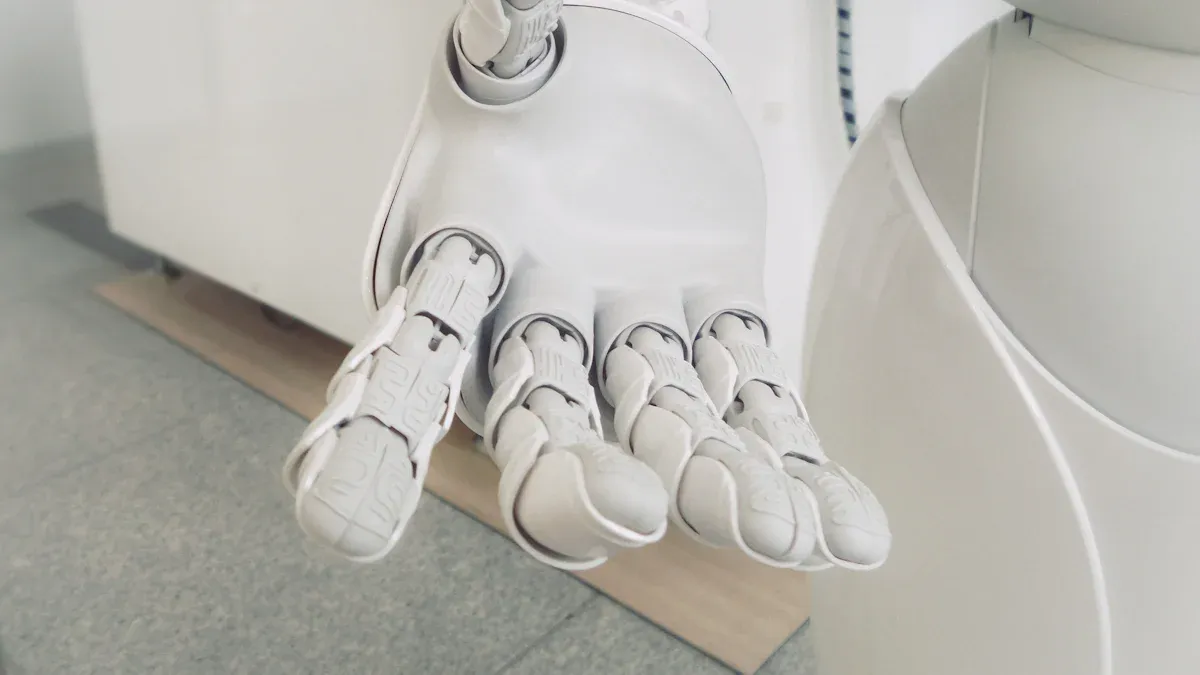
Think about turning a sketch into a prototype fast. Companies like Airbnb do this with AI. They turn hand-drawn ideas into ready-to-use code. This makes designing quicker and less repetitive.
Entrepreneurs in hardware also use AI for faster prototypes. Generative AI helps them test ideas without starting over each time. They can try many designs quickly and easily.
Here’s how AI helps with prototyping:
Case Study | Description |
|---|---|
Generative AI in Product Development | Clients use AI to improve prototyping and workflows. |
Entrepreneurs and Hardware Development | Entrepreneurs use AI to speed up product creation. |
These examples show how AI simplifies hard tasks. It gives you more time to be creative.
Freelancers often handle many projects at once. This makes client presentations tough. AI tools like Canva and ChatGPT help a lot. Canva creates neat visuals fast. ChatGPT gives ideas or scripts for presentations.
For example, a freelancer can use AI to make design options for clients. This saves time and gives clients more choices. AI also studies feedback to help freelancers improve their work.
With AI, freelancers can make great presentations without stress. It’s like having a helper for the hard parts.
Branding needs research, ideas, and changes. Agencies now use AI to make this easier. Tommy Hilfiger uses AI to study trends and customer habits. This helps them design things people like.
IDEO, a design company, uses AI to create chair designs based on comfort data. They find new ideas faster. The North Face uses AI to suggest products customers will enjoy. This makes shopping better for users.
Here’s how companies use AI for branding:
Company | AI Implementation Description | Outcome |
|---|---|---|
Tommy Hilfiger | Studies trends and customer habits for better designs. | Creates collections people love. |
IDEO | Designs chairs using comfort data and AI. | Faster ideas and unique solutions. |
The North Face | Suggests products based on customer preferences. | Happier customers and better engagement. |
These examples show how AI makes branding faster and more effective.
AI tools are changing how designers work. They take care of boring tasks like resizing and formatting. This gives you more time to think of creative ideas. These tools also study user data and give helpful tips. You’ll save time, make fewer mistakes, and work smarter.
Start with small steps. Choose one or two tasks to automate. Try tools that match what you need. For example, use AI to make design options or create prototypes faster. Over time, you’ll see how AI helps you improve and try new ideas.
Using AI opens up new ways to create amazing designs.
A smooth design workflow means your work happens without delays. AI helps by doing tasks like resizing pictures or making mockups. This saves time and lets you focus on creative designs.
AI tools study user data to learn what people like. They suggest changes to improve designs. For example, an AI image tool can create pictures that match your audience’s taste.
Yes, AI speeds up UX design by handling boring tasks. It also helps with things like making prototypes or wireframes quickly. This gives you more time for creative ideas.
Start with one or two tools that solve simple problems. For example, use AI to automate tasks or create design options. Slowly add more tools and teach your team how to use them.
Yes, AI tools work for freelancers, agencies, and in-house teams. Whether you’re designing for UX or branding, these tools save time and boost creativity.






You can! But a senior designer can command $30K a month. Also, depending on your needs, they may not be able to do all that’s required. Fractional design partners like LaunchBox bring a range of skills and and a lot of experience for an affordable monthly rate.
Good question. This depends a lot on you, but we can do a lot if we work well together. For example, it’s reasonable for us to deliver a brand, website, merch, presentations, and print/packaging in a month.
No, there are no refunds, but you can pause, cancel, upgrade or downgrade your subscription any time. We also offer a risk-free no-card-needed trial so you can test LaunchBox for yourself!
The source files are yours, and you will have access to them during the entire subscription.
We produce video and animation using Blender and Resolve. We build sites in Framer, and Wordpress. We design using Affinity Designer and Figma. We can also adapt to your needs.
You add tasks to a shared Trello board and we’ll deliver on the task within 48 hours. Tasks are updated and links are added to the board. The board holds everything. We provide task templates so you can see a roadmap for most project types when creating tasks.